


The JewelCloud® integration in Loupe Factory turns the inventory you already track into your JewelCloud product feed. You pick the stones and jewelry styles retailers should see. Suggest with AI fills in any JewelCloud category, collection, or metal color a style is missing, and marks each suggestion for you to review. Loupe Factory prices each listing in one currency, checks every row against JewelCloud's requirements, and delivers the file to the FTP drop GemFind sets up for you, whenever you run it and every night once you are live.
What is JewelCloud?

JewelCloud is GemFind's B2B platform for the jewelry trade. Vendors upload their collections once, retailers browse and source from them, and JewelCloud's product feed carries those products onto retailer websites. For a manufacturer or wholesaler, it puts one catalog in front of many retailers without a spreadsheet emailed to each of them.
JewelCloud shows retailers whatever your last file said, so a listing is only as good as the data behind it and the day it was sent.
Why do JewelCloud listings fall out of date?
Most vendors build the JewelCloud file by hand. Someone exports inventory to a spreadsheet, reshapes it into JewelCloud's columns, converts stone prices to per carat and jewelry prices to per piece, pastes in photo links, and looks up a category for every style. All of that has to be redone whenever stock or prices change, so it gets done less often than it should.
Meanwhile the catalog keeps moving. A stone sells on Tuesday. A style gets better photos on Wednesday. GemFind replaces your whole catalog with each file you send, which keeps JewelCloud tidy and also means retailers see only what your last upload knew. The fix is to make each upload cost nothing, so it can happen every night.
How does the JewelCloud integration work?
You set it up once, from Integrations, then JewelCloud, in the left menu. The page has a Getting listed checklist that follows GemFind's onboarding, plus Configuration, Listed items, and Feed runs.
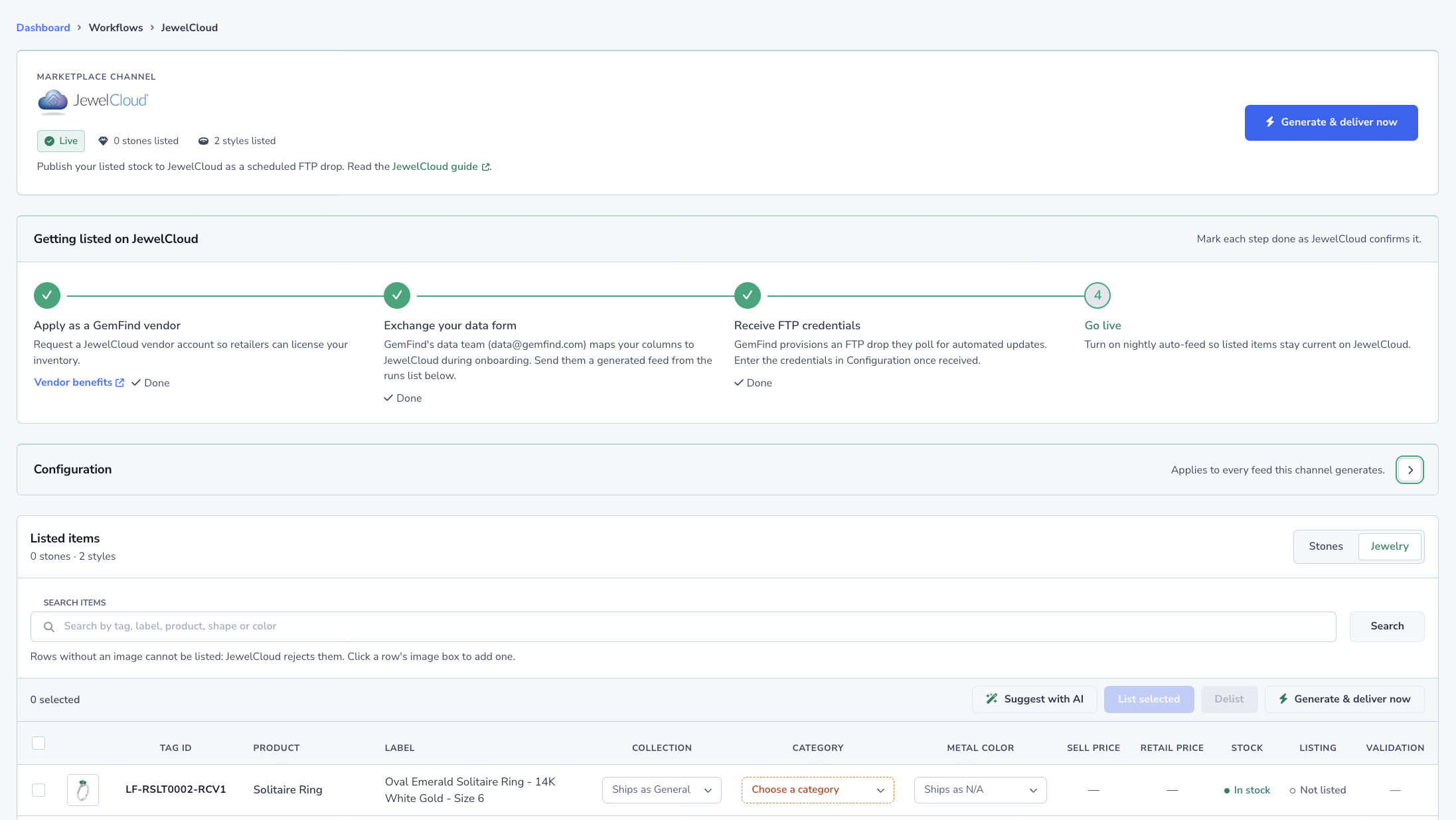
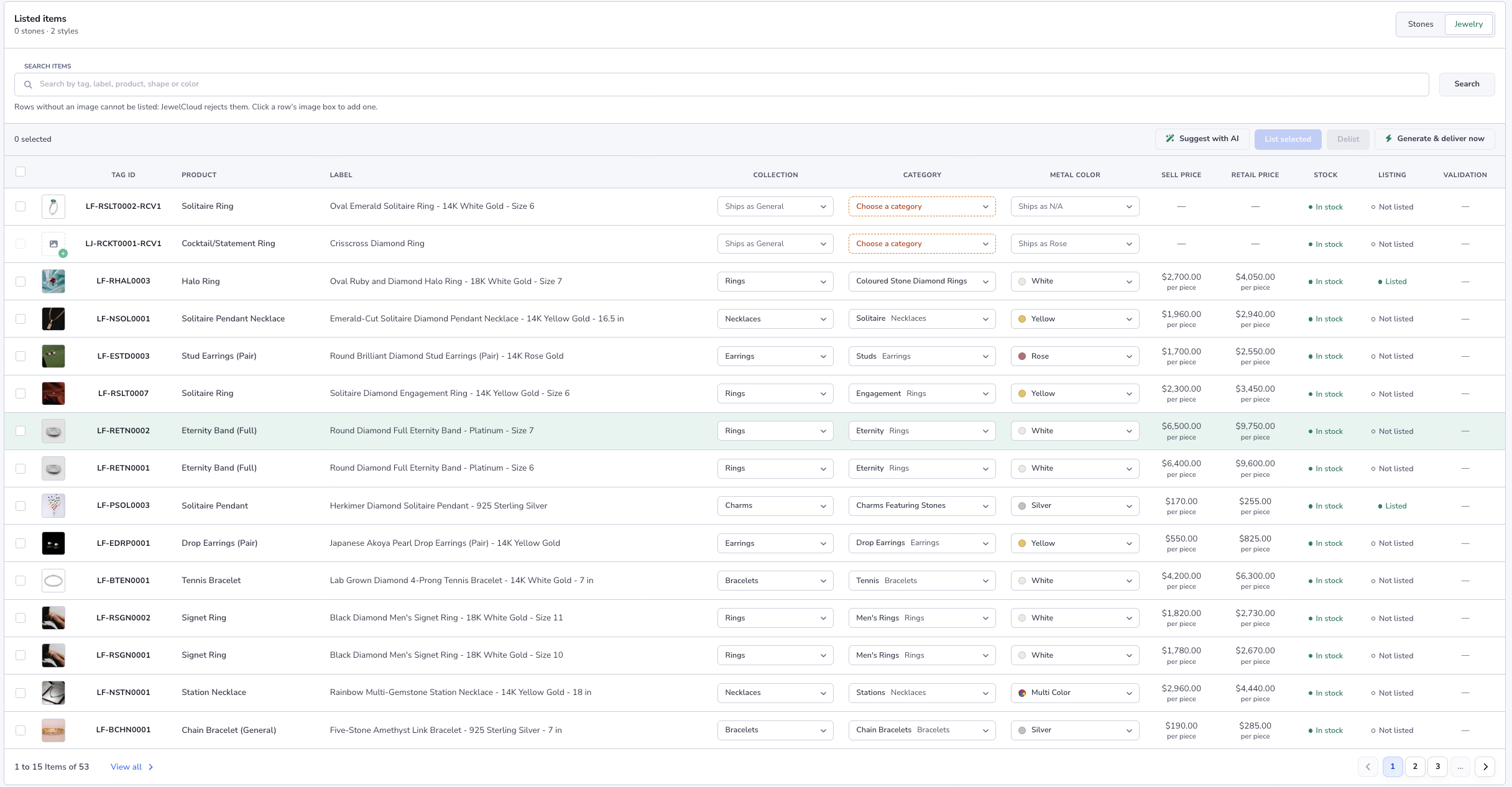
- Pick stones and jewelry styles. Open the Stones or Jewelry tab in Listed items, search by tag, label, product, shape, or color, tick the rows you want, and choose List. Each inventory item becomes one JewelCloud listing. JewelCloud rejects rows without a photo, so an item can't be ticked until it has one.
- Give each style its JewelCloud fields. A style needs a JewelCloud category, such as Cocktail under Rings, and can carry a collection and a metal color. Suggest with AI fills every empty one in the list for up to 2 AI credits, and marks each suggestion so you can review it.
- Set the feed once. In Configuration, pick the feed currency, price type, delivery time, gender, and vendor type, add any line of text you want on every style, and choose whether RetailerStockNumber sends the Tag ID or the product label.
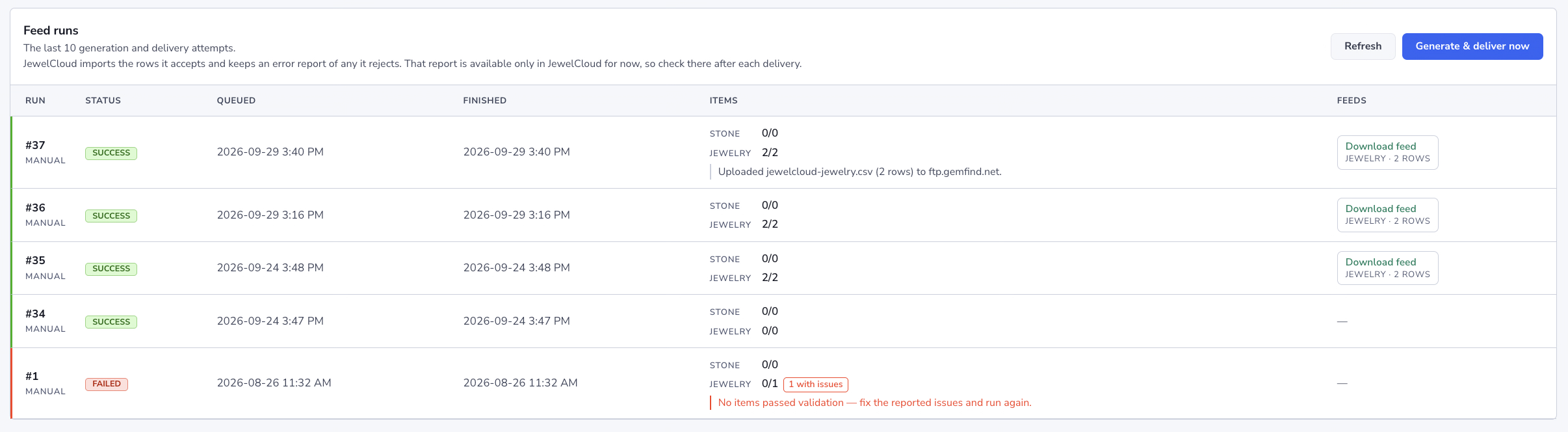
- Send GemFind a sample. Choose Generate & deliver now. Loupe Factory builds the file and tells you when it is ready. Download it from Feed runs and email it to data@gemfind.com so GemFind's data team can map your columns.
- Switch delivery to FTP and go live. When GemFind provisions your drop, add the username and password and save. The host, ftp.gemfind.net, and port 21 are already filled in. Once the checklist shows Live, turn on Nightly auto-feed, and Loupe Factory rebuilds and delivers the feed every night at 03:00 UTC.
A night whose file matches the last one delivered is skipped as unchanged, so GemFind never gets the same file twice for no reason. After every run that delivered a file, generated one, or found something to fix, workspace admins get an email receipt with the counts, where each file went, and the items held back with the reason.
What does Loupe Factory check before a file goes out?
Every run checks every listed item against JewelCloud's requirements. An item that fails stays listed but out of the file, and the rest of the feed still goes out. The Validation column shows OK, or a red badge counting the issues. Hover the badge, or tab to it, to read each issue and the fix.
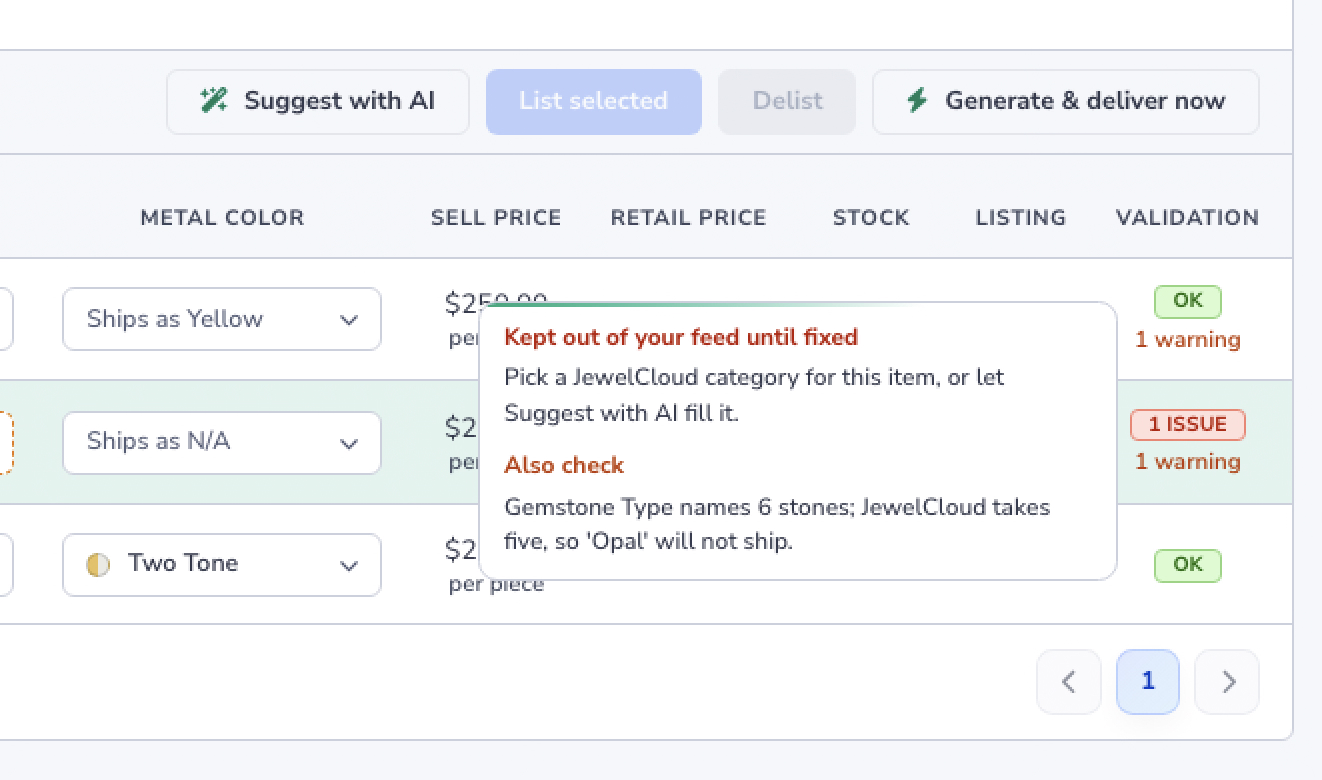
Warnings don't hold anything back. A style that names a sixth gemstone ships with a warning that JewelCloud has columns for five, and a stone without a lab or certificate number lists with a warning too.
| Held back when | What to do |
|---|---|
| The item has no photo | Add one from its image box. Loupe Factory won't let you list an item without one. |
| A style has no JewelCloud category | Pick one on the Jewelry tab, or choose Suggest with AI. |
| A style is missing its product label or Metal Purity | Fill them in on the item. The product label becomes the StyleNumber retailers see. |
| A stone is missing its shape, weight, color, or clarity | Fill the field on the item. Clarity falls back to Quality when the attribute is empty. |
| There is no positive sell price with a price basis | Set the sell price and its basis on the item. |
JewelCloud runs its own checks when the file arrives and keeps an error report of any rows it rejects. That report lives inside JewelCloud for now, so look there after a delivery. Fix the item in Loupe Factory and the next run sends the corrected row.
Which Loupe Factory details fill the JewelCloud columns?
Most of them are already on your jewelry items. Every jewelry item in Loupe Factory opens with No of Stones, Metal Purity, Net Metal Weight, Stone Weight, Gemstone Type, and Hallmark No on the form, and each of those has a column on JewelCloud's jewelry sheet. A workspace that records them has most of its feed filled in before the first run.
| In Loupe Factory | JewelCloud column |
|---|---|
| Product label | StyleNumber |
| Tag ID, or the product label if you choose | RetailerStockNumber |
| Product name and storefront description | ProductName, ProductDescription |
| Metal Purity and the style's metal color | MetalType, MetalColor |
| Gemstone Type and the Shape field, one stone per column | GemstoneType1 to 5, GemstoneShape1 to 5 |
| Stone Weight, in carats | TotalGemstoneWeight, plus TotalDiamondWeight when the one stone is a diamond |
| No of Stones, Net Metal Weight, Hallmark No | ExtendedField1, ExtendedField2, Hallmark |
| Main photo, up to four more Media Gallery pictures, and the first gallery video | ImagePath, ImagePath2 to 5, VideoURL |
| Sell price and retail price, per piece | WholesaleBasePrice, MSRP |
| In Loupe Factory | JewelCloud column |
|---|---|
| Tag ID | Vendor Stock # |
| Sell price, per carat | CostPerCarat |
| Shape, weight in carats, color, and clarity | Cut, Size, Color, Clarity |
| Lab, Certificate No, Cut Grade, Polish, Symmetry, Fluorescence, Origin, Treatment | The matching columns, with Fluorescence in Fluorescence Intensity |
| The numbers in the Size field, such as 5x3 | Measurements |
| The country of the item's location, and the quantity for a parcel | Country, Stones |
| The item's photo | Additional Image |
The JewelCloud integration docs have the full column reference and every setting.
The photo matters more than any column, because JewelCloud won't take a row without one. If your bench photos aren't catalog quality yet, Loupe Factory's AI image studio can put them on a clean studio background and save the result to the item. The ProductDescription column can come from an AI storefront description drafted from the item's own details, and the extra image slots fill from its Media Gallery.
How are prices converted, and what stays private?
Stones go to JewelCloud per carat and jewelry per piece, whatever basis the item's price uses in Loupe Factory. Each run works out the item's total value from its price and basis, whether that is per carat, per gram, per piece, or for the whole lot. It divides by carats for a stone or by pieces for a style, then converts the result into your feed currency at current rates.
Two prices leave Loupe Factory. The sell price fills WholesaleBasePrice and CostPerCarat, and the retail price fills MSRP. The cost price never leaves. The integration is also one-way, so JewelCloud sends nothing back and a feed never changes your inventory, prices, or photos.
What happens when a piece sells or you stop listing it?
GemFind replaces your catalog with each file, so anything the file leaves out comes off JewelCloud. Removing a listing takes no extra step.
- Delist an item and it leaves the next file. List it again to bring it back.
- A stone with no weight left, or zero quantity when quantity is tracked, leaves the next feed on its own and returns when it is back in stock.
- A sold-out style stays listed until you delist it. JewelCloud's jewelry sheet has no quantity column, and retailers order by style.
- An item deleted from Loupe Factory leaves the feed with it.
- If every listed item is held back with issues, no file goes out, and JewelCloud keeps your last one until the items are fixed.
Who is the JewelCloud integration for?
Jewelry and gemstone manufacturers and wholesalers who sell to retailers and want their JewelCloud catalog to match their stock. It works best when Loupe Factory is already where your production, inventory, photos, and prices live, because then the nightly feed keeps your listings current with no extra work. The jewelry page covers the rest of what a jewelry workspace does, from issuing stones and metal to production jobs to invoicing.
| In Loupe Factory | In JewelCloud |
|---|---|
| A workspace whose industry is Jewelry or Gemstones | A GemFind vendor account, applied for at jewelcloud.com |
| The Professional plan or higher | Your data form exchanged with data@gemfind.com |
| An admin to set it up | FTP credentials from GemFind, for automatic delivery |
Nivelle.nyc, a New York jewelry manufacturer and wholesaler, began sending its catalog to JewelCloud through Loupe Factory in October 2026.
"Very excited to see this all go live. It worked out really well. Impressive!"
Get your catalog in front of JewelCloud retailers
Already on Loupe Factory? Open Integrations, then JewelCloud, pick a few stones and jewelry styles, and generate a sample for GemFind's data team. Setup steps are in the JewelCloud integration docs, and new vendors can apply to JewelCloud while they set up.
New to Loupe Factory? JewelCloud is included on the Professional plan and above. If you are a JewelCloud vendor or retailer, enter the code JEWELCLOUD2026 at checkout for 10% off your first month of Professional or Business, or your first year on annual billing. The code works through January 31, 2027.