


Every inventory tag in Loupe Factory now has a Print button. It opens Chrome's print dialog with the tag laid out at your location's label size, and the code drawn for your printer's resolution. Loupe Factory installs nothing on your computer. Tick up to 200 rows on an inventory tab and they print as one job. Jewelry shops can print barbell and rat-tail tags on DYMO and Uline rolls, and barbell tags on a Zebra or another roll printer.
What changed on the inventory tag
Until now, a tag left Loupe Factory as an image you copied or downloaded. The tag modal now has a Print button next to Copy Image and Download. Click it and Chrome opens its print dialog with the tag already sized to your location's label. Keep Margins on Default and Scale at 100, choose the label printer, and print. Chrome is the supported browser.
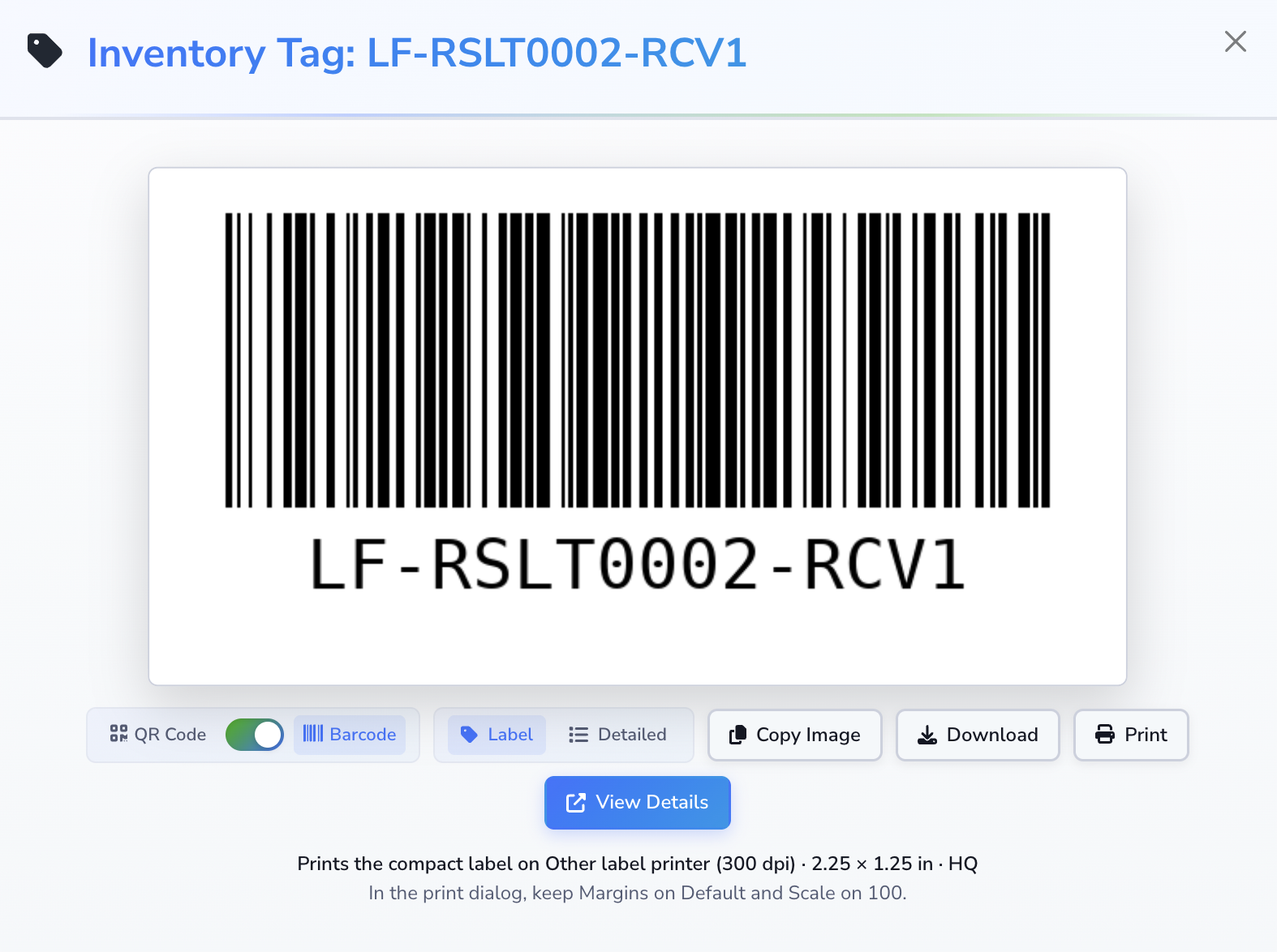
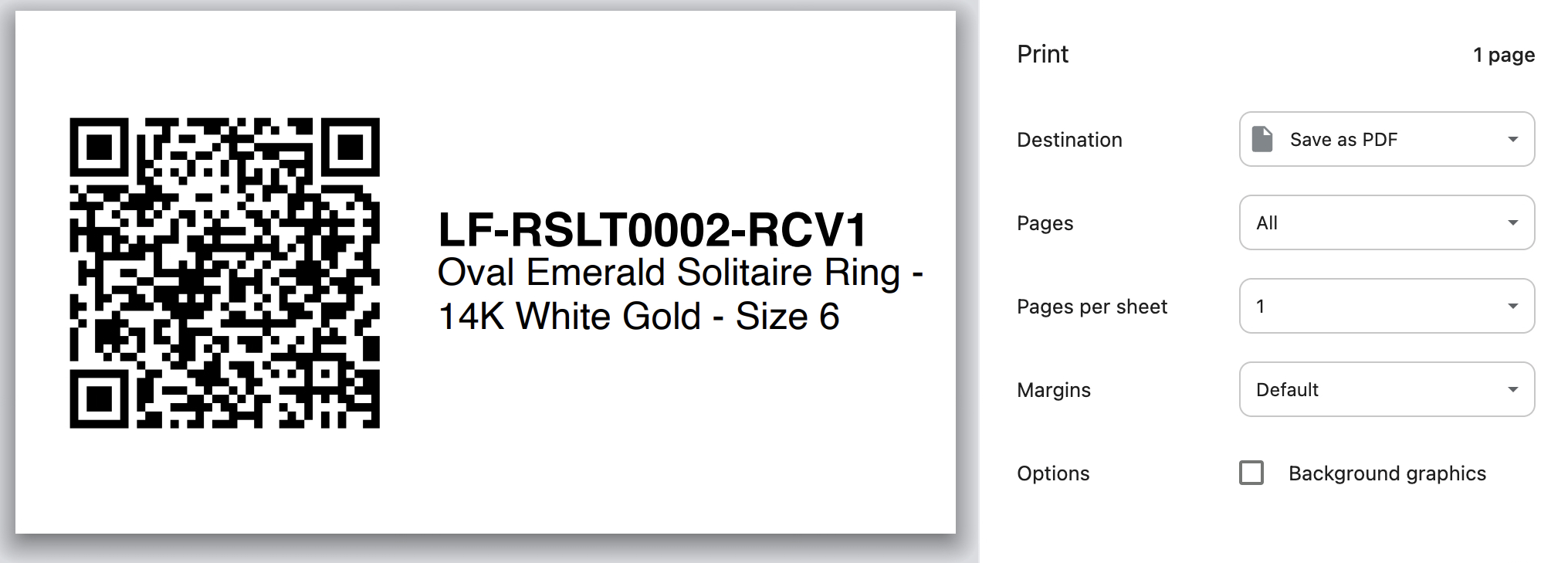
Tagging a tray by hand is slow and easy to get wrong
A tray of 40 rings comes back from polishing, and each piece needs its tag before it goes into the case. When the tag only exists on screen, someone copies 40 tag IDs onto string tags with a pen, or types each one into the label printer's own app. One transposed digit and the ring on the tray no longer matches its record.
Furniture and parts shops copy an item's details onto 4 × 6 in carton labels the same way. Printing from the tag puts the record's own tag ID on the label, so nobody retypes it.
Set the printer once for each location
An admin opens Settings > Organization and gives each location a Label printer and a Label size. Each person prints on the printer and roll of their own location. The bench in one building and the shipping desk in another can run different printers, and nobody changes a setting before they print.
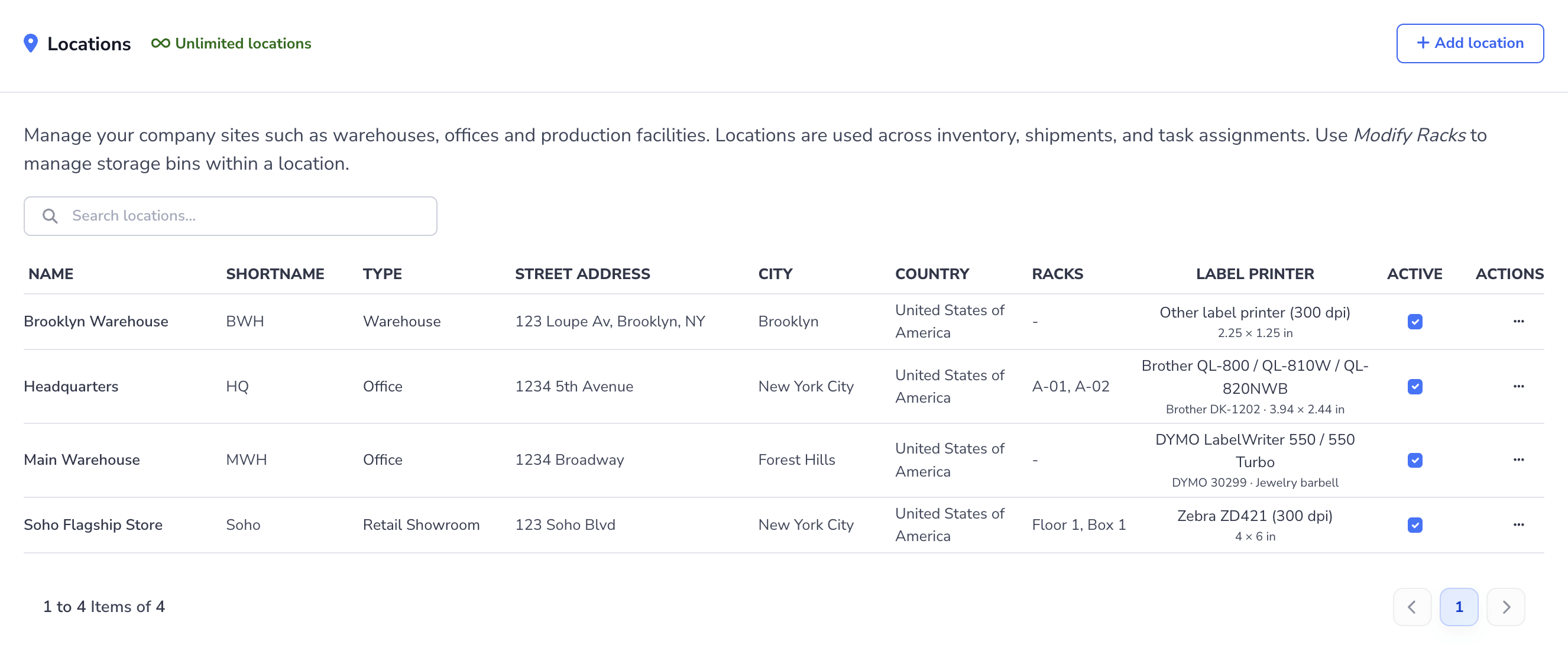
A user whose location has no printer gets the printer of the organization's default location. If that location has none either, tags print on a 2.25 × 1.25 in label.
Choosing the model tells Loupe Factory the printer's resolution. Loupe Factory then draws every QR code and barcode in whole printer dots, so the bars stay sharp.
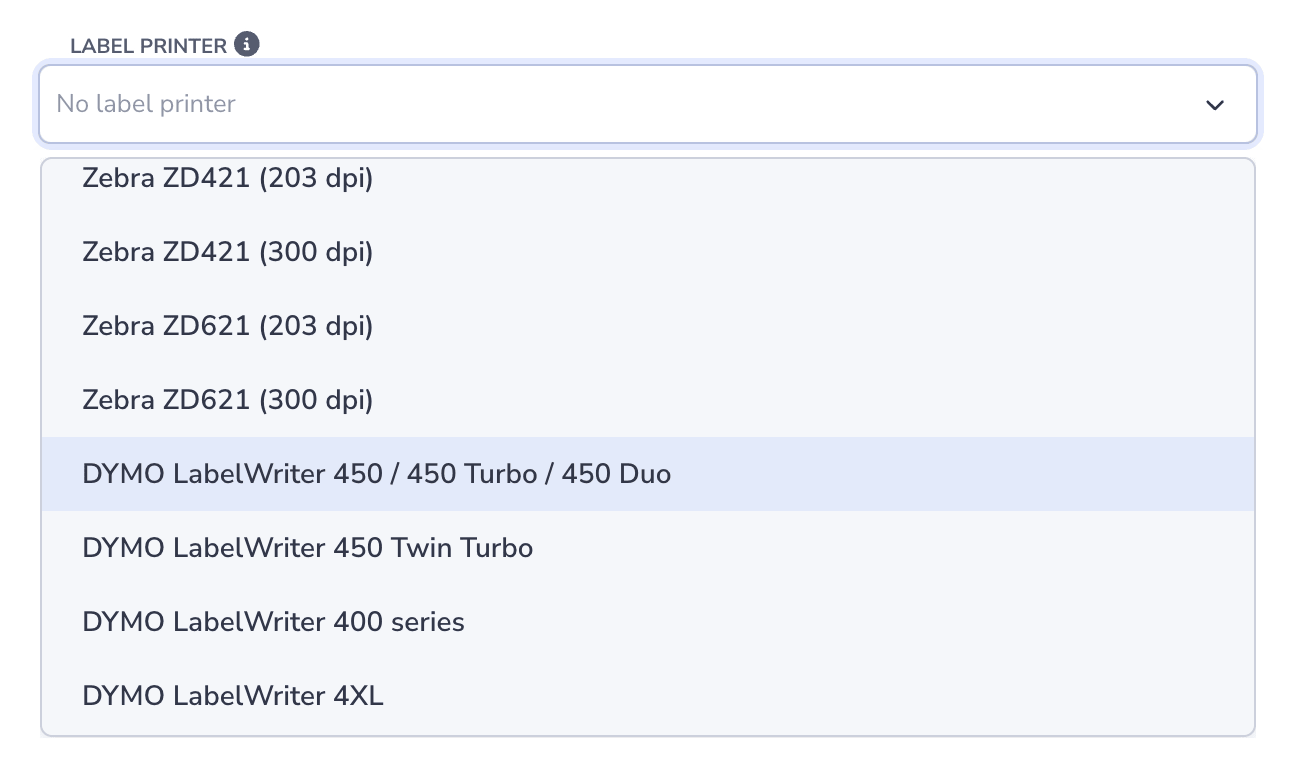
| Brand | Printers in the list |
|---|---|
| Zebra | ZD421 and ZD621, each at 203 or 300 dpi. |
| DYMO | LabelWriter 450, 450 Turbo, 450 Duo, 450 Twin Turbo, the 400 series, 4XL, 550, 550 Turbo and 5XL. |
| Brother | QL-800, QL-810W, QL-820NWB, QL-1100 and QL-1110NWB. |
| Epson | ColorWorks CW-C4000. |
| Any other printer | Other label printer, at 203 or 300 dpi. |
| Roll | Label sizes in the list |
|---|---|
| Standard labels | 2 × 1, 2.25 × 1.25, 3 × 2, 4 × 2, 4 × 3 and 4 × 6 in. |
| DYMO | 30336, 30334, 30252, 30256 and 1744907. |
| Brother | DK-1209, DK-1201, DK-1208, DK-1202 and DK-1241. |
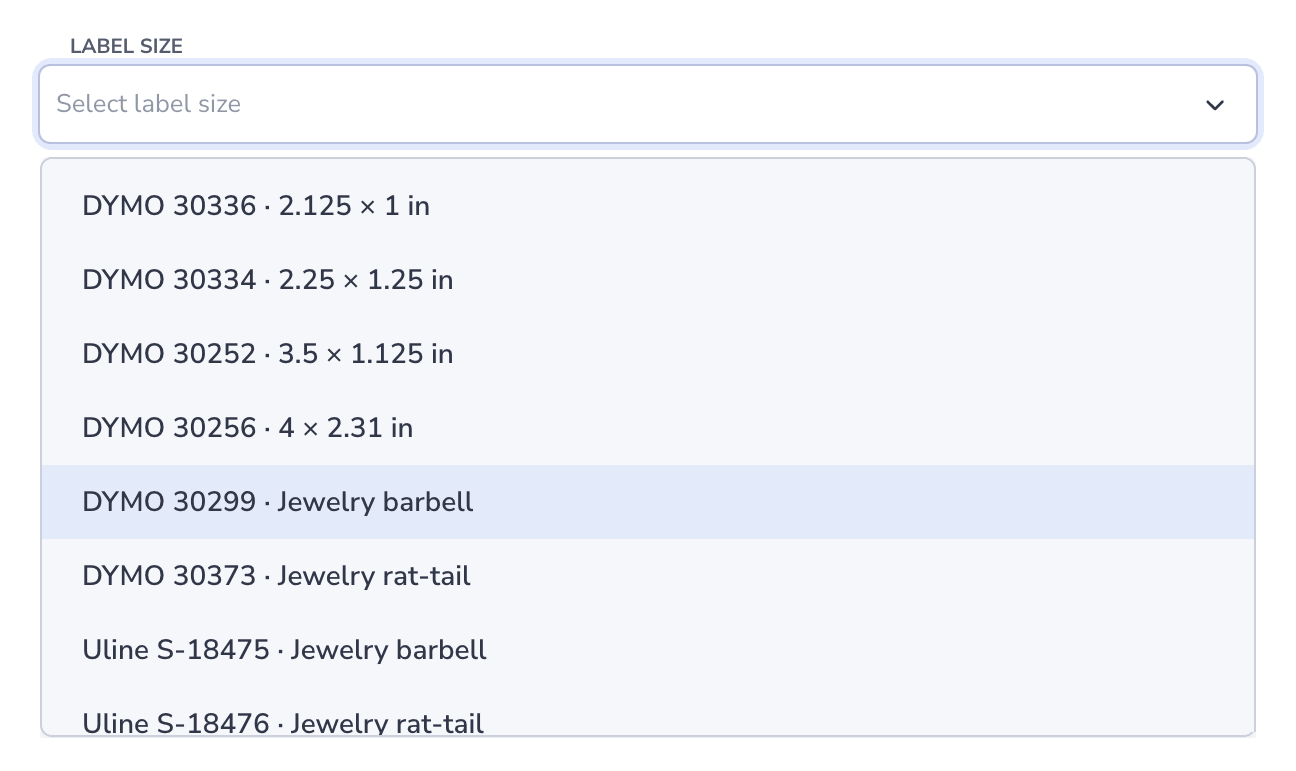
| Jewelry tags | DYMO 30299 barbell and 30373 rat-tail, Uline S-18475 barbell and S-18476 rat-tail, and a 2.2 × 0.5 in barbell for Zebra and other roll printers. |
What each layout prints
| Layout | What prints | Labels |
|---|---|---|
| Compact label | The QR code or barcode, the tag ID and the product label. | Every size. |
| Detailed tag | Your organization's name and the item's field list. | 4 × 3 in and larger. |
| Jewelry tag | On a barbell, the code on one pad and the tag ID, product label and weight on the other. On a rat-tail, the code above the tag ID and product label. | Barbell and rat-tail rolls. |
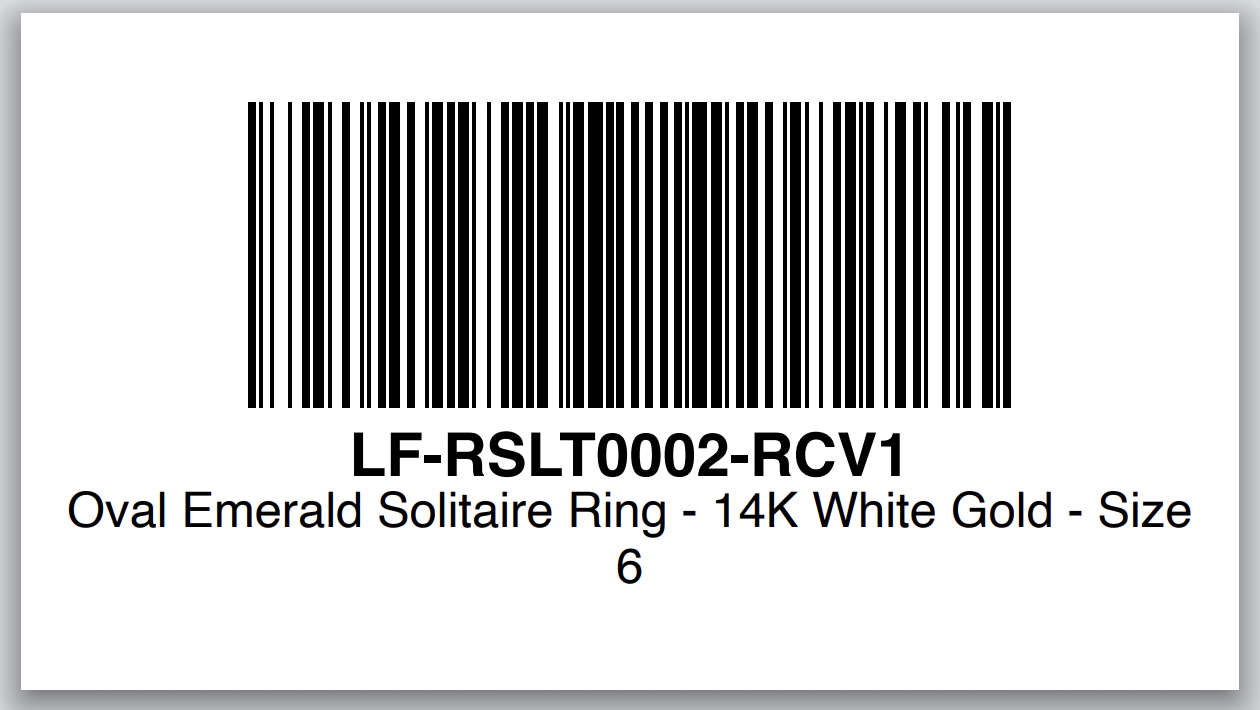
Print a whole tray in one job
Bulk printing works from three inventory views: All inventory, Finished, and the inventory on a product's details page.
- Tick the rows. Select the items that need tags, up to 200.
- Click Print tags. The print options open over the list.
- Choose the code. Pick QR code or Barcode. On a label 4 × 3 in or larger, also pick Compact label or Detailed tag.
- Print. The whole selection goes to Chrome's print dialog as one job.


Loupe Factory never prints a clipped barcode. If a tag ID is too long for a barcode on the chosen label, it names the tags that do not fit and offers to print the rest. You can also switch the job to QR codes.
Jewelry tags on the DYMO LabelWriter 450 Twin Turbo
The LabelWriter 450 Twin Turbo takes the DYMO and Uline jewelry rolls: DYMO 30299 barbell, DYMO 30373 rat-tail, Uline S-18475 barbell and Uline S-18476 rat-tail.
- Set the location. In Settings > Organization, set the location's Label printer to DYMO LabelWriter 450 Twin Turbo and its Label size to the roll you load, such as DYMO 30299 barbell.
- Print from the tag or the list. Click Print on one tag, or tick rows on an inventory tab and click Print tags.
- Check the dialog. In Chrome, choose the Twin Turbo and keep Margins on Default and Scale at 100.
On a barbell, the QR code or barcode prints on one pad, and the tag ID, product label and weight print on the other. On a rat-tail, the code sits above the tag ID and product label.
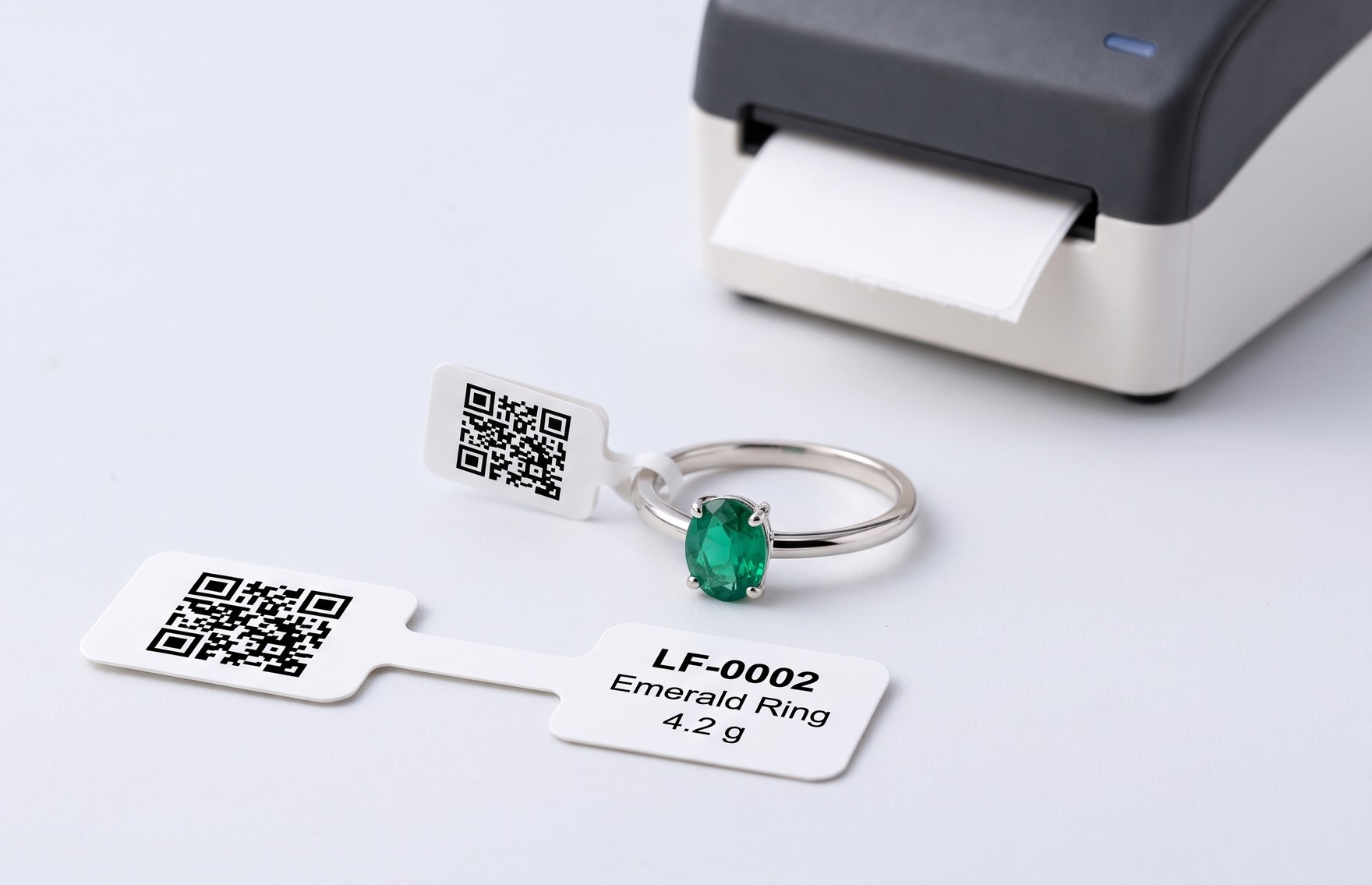
A DYMO barbell roll carries two tags on each label. Print one tag and you get two copies of it. Print a selection and each label carries two different tags, so a tray of 40 rings takes 20 labels.
The Uline rolls also fit the LabelWriter 400 series, the other 450 models and the 4XL. The LabelWriter 550 and 5XL take only DYMO's own rolls. On a Zebra or another roll printer, choose the 2.2 × 0.5 in barbell.
Barcodes on a barbell pad need the Professional plan or above, like every Code 128 tag. A long tag ID may not fit as a barcode on a pad that small. Loupe Factory names any tag that does not fit, and you can print it as a QR code. On a barbell pad the QR code holds the tag ID itself, so a 2D scanner reads it into any tag field and a phone camera shows it as text.
Which setup fits your work
Fine jewelry
A LabelWriter 450 Twin Turbo with DYMO 30299 barbell or 30373 rat-tail tags, printed in bulk from the rows on the Finished tab.
Loose stones and parcels
A compact label on a 2 × 1 in or 2.25 × 1.25 in label, with the code, tag ID and product label on every parcel.
Furniture and auto parts
A detailed tag on a 4 × 6 in label from a Zebra ZD421 or ZD621, with your organization's name and the item's field list on the carton.
Shops with several locations
Each location keeps its own printer and label size. The bench prints barbell tags and the warehouse prints 4 × 6 in labels from the same inventory.
What each plan prints
QR codes print on every plan, Starter included. Code 128 barcodes need the Professional plan or above. On any plan, printing goes through Chrome's own dialog to the label printer your computer already uses.
Print your first tag
Already using Loupe Factory? Have an admin set your location's Label printer and Label size in Settings > Organization, then open any inventory tag and click Print. New here? Start a 30-day trial and print QR tags from your own inventory.